

With this guide, we will try to solve the problem of the command not working or the server not opening by writing Java somewhere when opening a Minecraft server or in any situation where Java is used.
The main reason for the Java problem is most often that the location where Java is installed on your Windows computer is not known by the system.**
Recommended methods to solve this problem:
- Reinstalling Java software
- Introducing the location of the Java software to the computer (setting PATH)
Note:
After each operation, completely close and reopen the program or server that uses Java.**
Otherwise the old Java way may continue to be used and you may continue to get errors.
Java Requirement by Minecraft Versions
You need to run the Minecraft server with the correct Java version.
| Minecraft Edition | Required Java |
|---|---|
| 1.8 – 1.16 | Java 8 |
| 1.17 | Java 16 |
| 1.18 – 1.20.4 | Java 17 |
| 1.20.5 and later | Java 21 |
Server Performance Problems
Your servers:
- Unprotected?
- Is your internet speed low?
- Are resources insufficient?
You can benefit from affordable Rabisu servers.
Buy your server now with Rabisu
Contacts
Java 8 Installation
Since one of the stable and most widely used versions of Java is Java 8, we will proceed through this version in the guide.
You can download Java 8 from the link below.
I prefer the file that can be installed offline (offline installer)**.
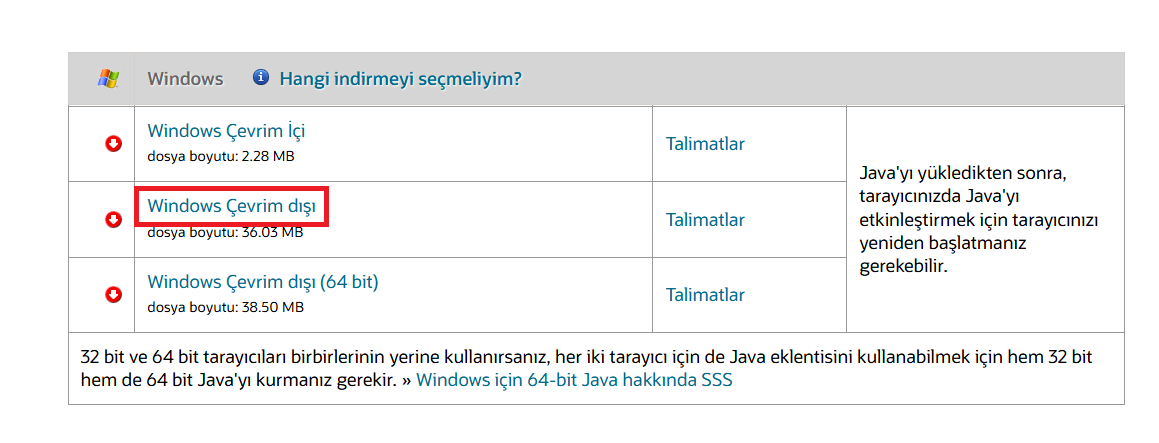
1. Downloading Java 8 Software
You can choose the offline installer option when downloading Java 8.
2. Installation Process
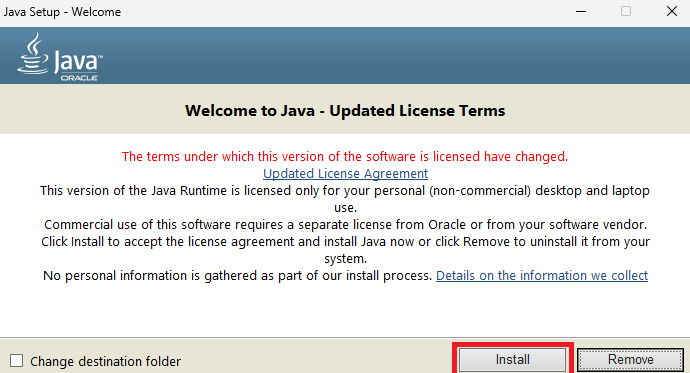
Run the file you downloaded and start the installation by pressing the Install button.
3. Completing the Installation
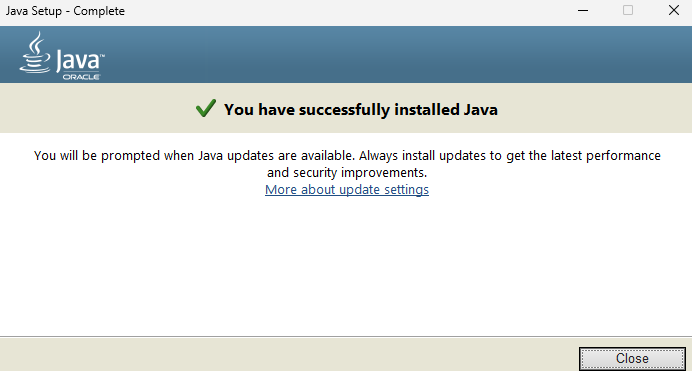
After the installation is completed, Java will be successfully installed on your computer.
Finding Java Files and Setting Path
After installing Java, we need to introduce the folder where Java is located to Windows.**
Whichever version of Java you want to make the main version on your computer, you should use the folder containing that version.
#1. Finding Java Files
On my computer, the Java folder is located in the following location:
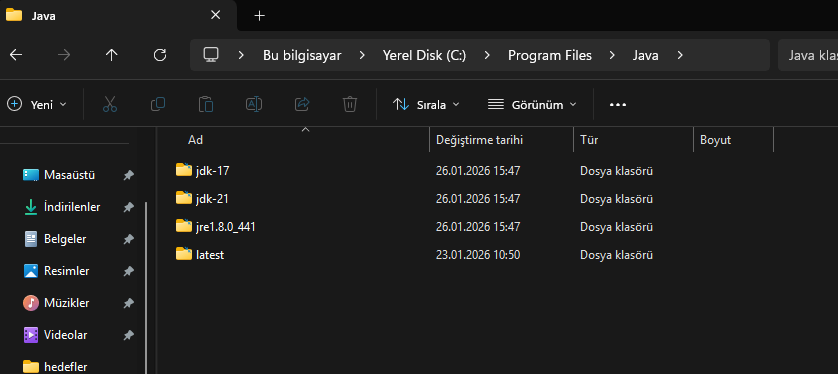
Find the Java folder on your computer.
2. Finding Java.exe
Java's executable file, java.exe, is usually located in the following folder: Java folder └ bin └ java.exe
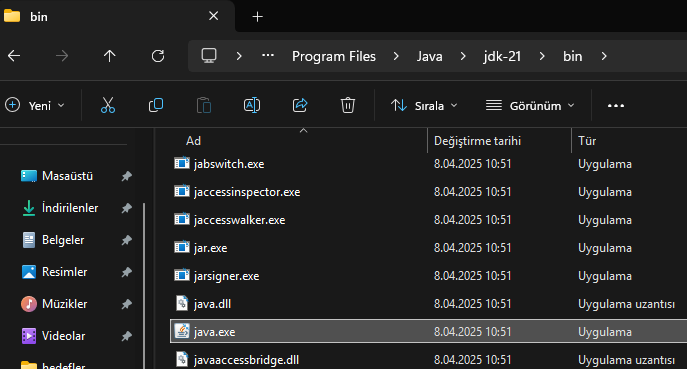
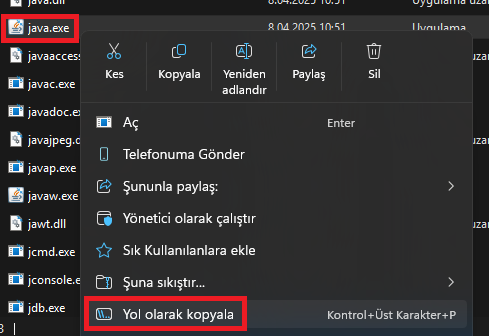
right-click on the java.exe file and:
Select Copy file path.
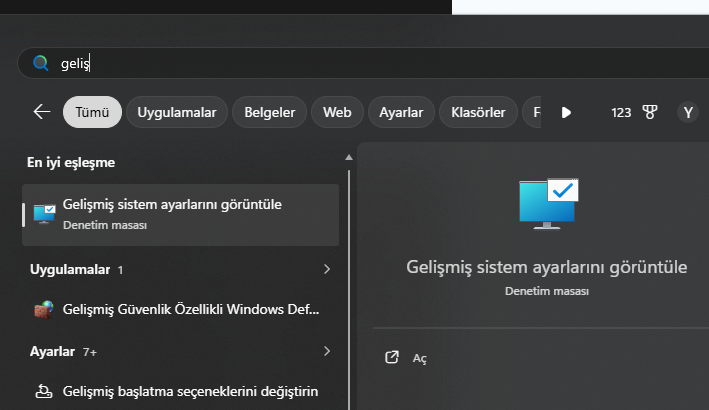
#3. Opening Advanced System Settings
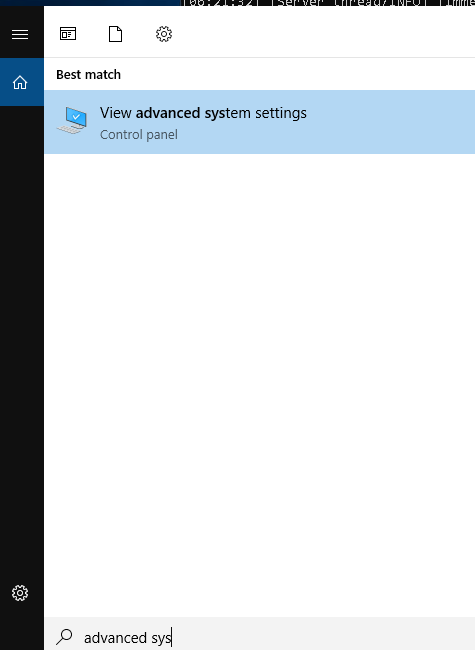
Type the following phrase into the Windows search bar:
View Advanced System Settings
Open the resulting option.
#4. Introducing Java Path to the System
In the window that opens:
Environment Variables...
Click the (Environment Variables) button.

Then edit the Path variable in the System Variables section.

Add New Java Path
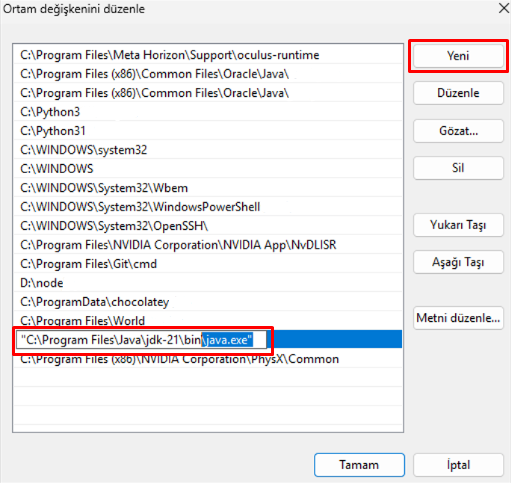
Press the new button and paste the path you just copied.
IMPORTANT:
The path you paste should not be like this:
"C:\Program Files\Java\jdk...\bin\java.exe"
It should be like this:
C:\Program Files\Java\jdk...\bin
So:
- Delete
java.exe - Remove quotes
The correct path should look like this:
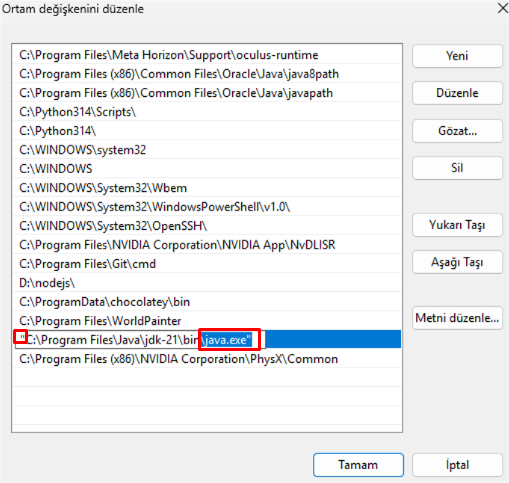
You can save and exit.
Java Version Incompatibility
If you're still getting the Java error, the problem is probably now a Java version mismatch.**
Your Minecraft server or the program you are using may have to work with a specific Java version.
In this case:
- Navigate to the folder of your desired Java version
- Right click on the
java.exefile - Copy the file path

Then where you run your server:
Previously written by:
java -jar server.jar
You can use it instead like this:
"C:\Program Files\Java\jdk...\bin\java.exe" -jar server.jar
Thus, the server will only work with the Java version you specify.
Result
After following this guide, your Java problems will be solved with a 95% probability.
In summary, what we do is:
- We installed Java cleanly
- We introduced the Java folder to Windows
- We fixed the PATH setting
- We ran specific Java version manually if necessary
See you in other guides!