

In this guide, you will learn how to set up your Minecraft server on Windows.
The server will be installed and the necessary adjustments will be made.
Preparing the Server Software
First, let's prepare our necessary server file.
I open my server with Paper software, but you can use any software you want.
- Paper: Paper - Fill
- Spigot: Public - Jenkins
- For all: Server Jars | MC Utils
Java Requirement by Minecraft Version
| Minecraft Edition | Java Version |
|---|---|
| 1.8 - 1.16 | Java 8 |
| 1.17 | Java 16 |
| 1.18 - 1.20.4 | Java 17 |
| 1.20.5 and later | Java 21 |
Note: Before downloading the files, It is recommended that you install Java 8 via normal installation from the internet.
Some installation settings may not be made because they are pure files.
The adjustments I made and the necessary files are available in the zip file at the bottom of the forum.
Creating Run.bat File
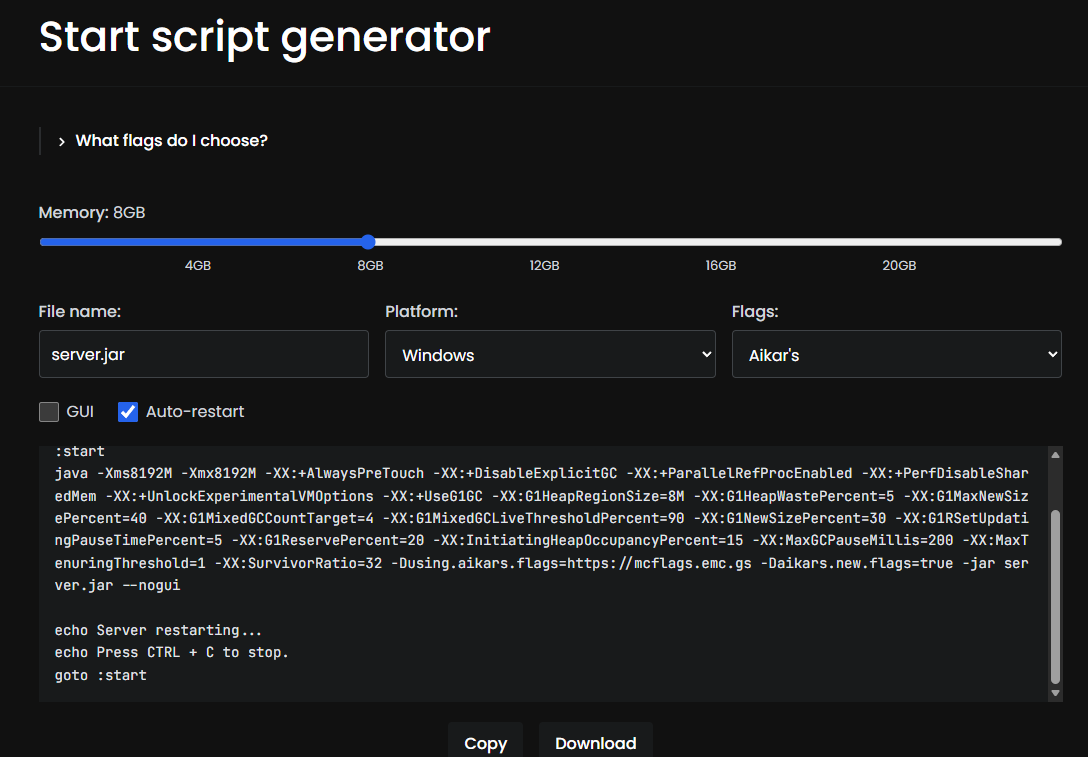
You can create your own run.bat file with this site.
Start Script Generator
Recommended settings (RAM can be adjusted as you wish)
Creating Server Folder
Create a folder where you will open your server and put the server file you downloaded into this folder.
IMPORTANT
The folder name must contain only English characters.
Do not use Turkish characters or symbols.
For example:
- inside
- o -ü
- !()=/(&%+)
There should not be characters like .

Starting the Server for the First Time
Run your run.bat file.
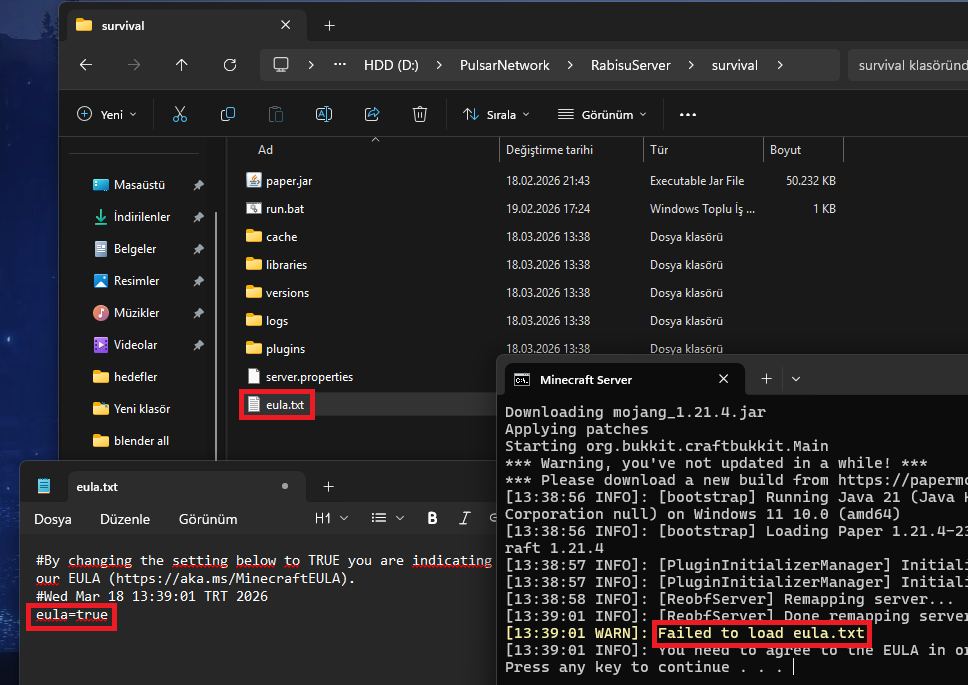
On the first run, the file eula.txt will be created.
Open EULA Setting
Open eula.txt and:
Change the part from false to true.
Save the file and:
- Close the CMD window
- Restart your server
Server Initialization Messages
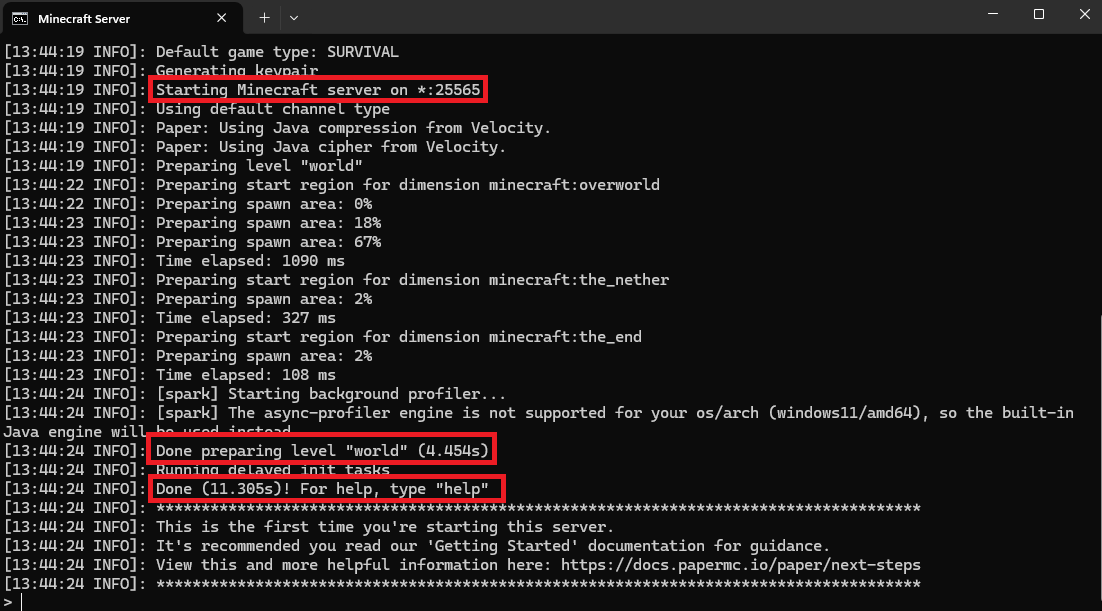
You will see some information while the server is opening.
Port Information
Starting Minecraft server on *:25565
Shows the port used by your server.
World Loading Time
Done preparing level "world" (4.454s)
It shows that the world loaded in 4 seconds.
Server Boot Time
Done (11.305s)! For help, type "help"
Indicates that the server is fully powered on.
Server Shutdown
Do not close the CMD window when shutting down the server.
Type the following command at the command line:
stop
This method is safer and prevents data loss.
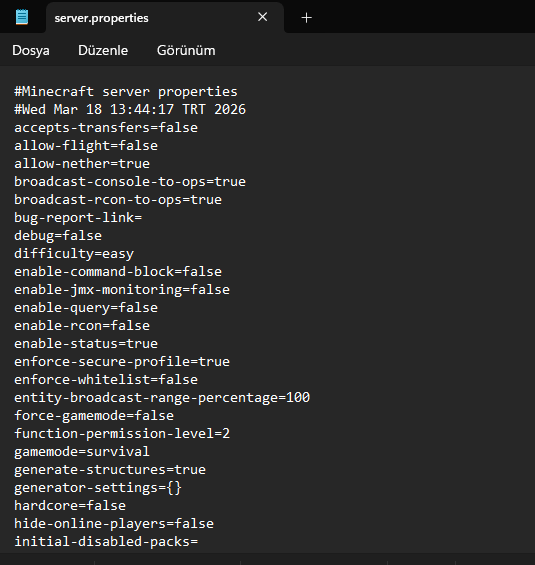
Server.properties Settings
Found in the folder after the server shuts down:
server.properties
Open the file.

This file contains many settings.
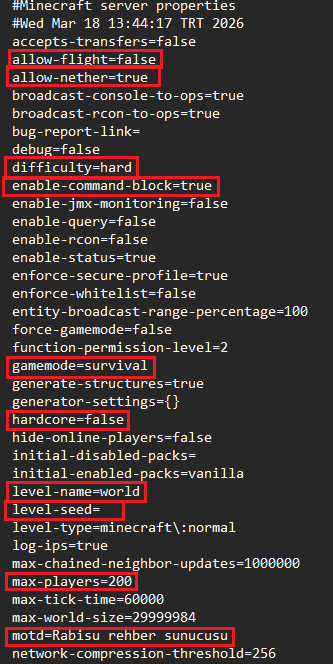

Important Server Settings
allow-flight
Players may be kicked when the plugin or mod allows flying but the server does not.
allow-nether
Opens or closes passage to the Nether world.
difficulty
Difficulty level
easy normal hard
enable-command-block
Opens command blocks.
gamemode
It determines what mode players will be in when they enter.
hardcore
Activates hardcore mode.
level-name
The world determines its name.
max-players
Maximum number of players that can enter the server.
###motd
The description that appears in the server list.
online-mode
false is set to allow pirate players to enter.
###pvp
It allows players to damage each other.
###query.port/server-port
The port used by the server.
server-ip
It is usually left as 0.0.0.0.
simulation-distance
The recommended value for performance is stated as 4.
spawn-protection
The recommended value is stated as 0.
view-distance
The recommended value is stated as 7.
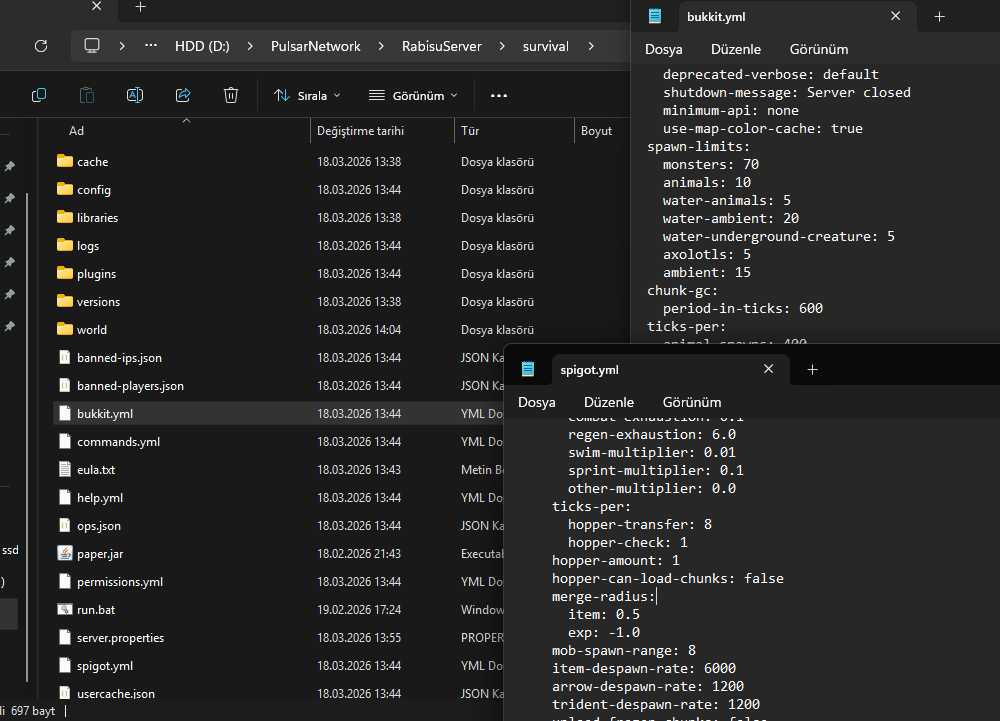
Paper Server Optimization
Since I use Paper as server software, there are additional optimization settings.
Open Port
There is a portacar.bat file inside the zip file.
Run this file.

The program will ask you for a port.
Example:
25565 is the Minecraft default port.
Connecting to Server
Your friends connect to the server like this:
IP:PORT
Example:
123.456.7.89:25565
Here:
- 123.456.7.89 → Server IP
- 25565 → Port
Server Security
Ensuring your server security:
- Players
- Server owners
It is very important for.
For security:
- Use firewall
- Limit powers
- Use up-to-date software
Result
With this guide:
- How to set up Minecraft server on Windows
- Setting up the EULA
- Editing server settings
- Opening a port
- Connecting to the server
you learned.
Now you can easily run your own Minecraft server.