

VDS/VPS Operating System Replacement Guide
In this guide, you will learn step by step how to change or reset the operating system of your VDS / VPS server using Virtualizor Cloud Panel.
Thanks to this process, you can send to your server:
- Can install a new Linux distribution (Ubuntu, Debian, etc.)
- Can install Windows Server
- You can completely reset the current system
The process is quite simple and is completed within a few minutes.
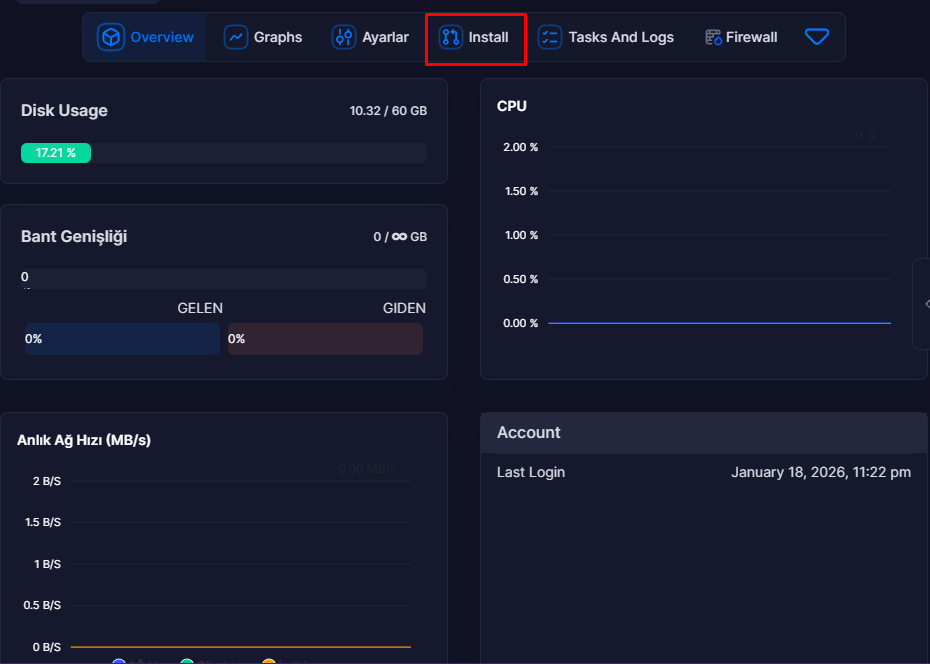
1. Step: Entering the Install Tab
First, log in to the Virtualizor panel and select your server.
Click on the Install tab from the left menu.
This section is where you can reinstall your server's operating system.
2. Step: Starting the Operating System Setup
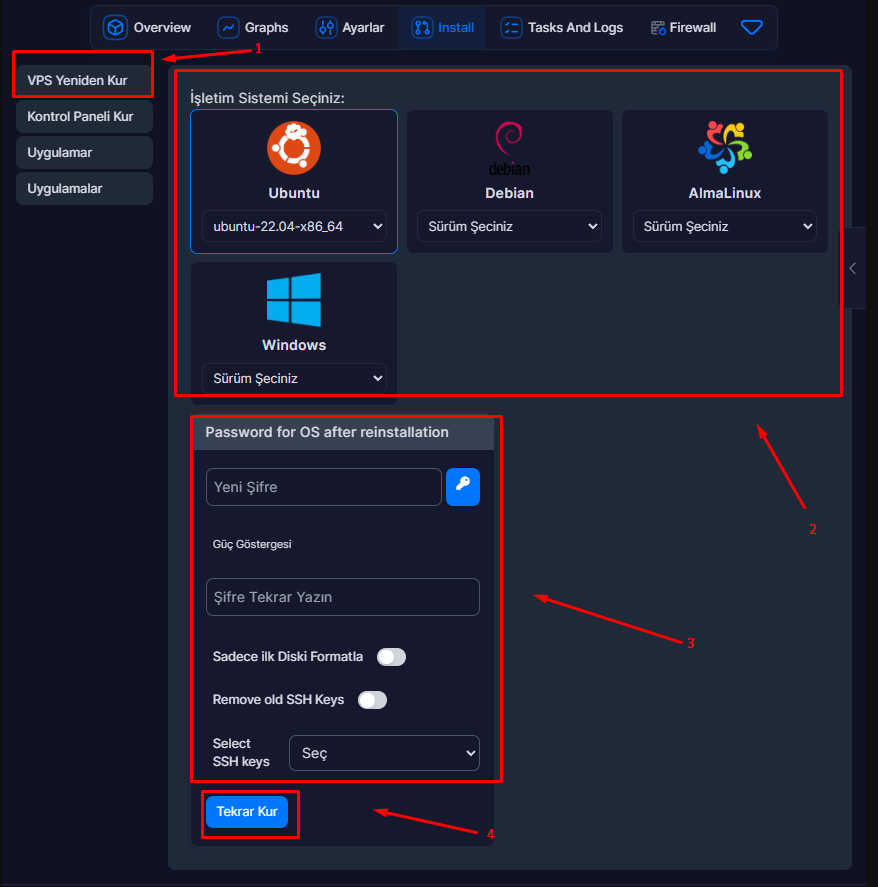
Once you enter the Install screen, you can start the operating system reinstallation process.
2.1 VPS Reinstallation Option
Click the VPS Reinstall button on the screen.
This process completely deletes the current operating system and starts a new installation.
2.2 Operating System Selection
After a while, the list of installable operating systems will be displayed.
Here you can choose the operating system that suits your needs:
- Ubuntu
- Debian
- CentOS -WindowsServer
Once you've made your selection, move on to the next step.
2.3 Determining Root / Administrator Password
You must create a new root (Linux) or administrator (Windows) password for the operating system you choose.
This password will be used for the following operations:
- SSH access
- RDP (Remote Desktop) connection
- Server management
For security, it is recommended that you use a strong and difficult to guess password.
2.4 Starting the Installation
After completing all the settings, click the **Reinstall) button.
With this process, the Virtualizor system will automatically start the operating system installation.
Installation Process
Installation time is usually completed within a few minutes.
This period:
- Server hardware
- Disk speed
- To the selected operating system
may vary depending on the
Your server will automatically restart during installation.
After the Process is Completed
Once the installation is completed successfully, login information will usually be sent to your registered email address.
With this information:
- You can establish an SSH connection
- You can log in via Remote Desktop (RDP)
- You can start server management
Result
Changing the operating system via the Virtualizor panel is that simple.
By following the right steps you can install your server in minutes:
- Can reset
- Can rebuild
- You can switch to a different operating system